Generate Reports
This option allows you to generate several types of schedule-based reports. These reports help contact center managers to make critical business decisions for contact center operations.
What do you want to do?
Tasks in this Topic Include:
- Generate a Break Table Report
- Generate a Shift Profiles Report
- Generate a Balance Staff Report
- Generate a Schedule Report
- Generate a Cost of Schedule Report
- Generate a Roster Sheet Report
Related Tasks:
Generate a Break Table Report
This option allows you to generate a report that gives a summarized view of the break times available for employees in a workgroup. The report contains the following fields: Session Length, Earliest Time, and Latest Time.
- Select Reports from the Schedule left-navigation menu.
- Select Break Table.
- Select View
Report.

The report is displayed:
Generate a Shift Profiles Report
This option allows you to generate a summarized report based on a selected shift profile.
- Select the Shift Profiles radio button.
- Select the shift profile from
the select Shift Profile drop-down menu.
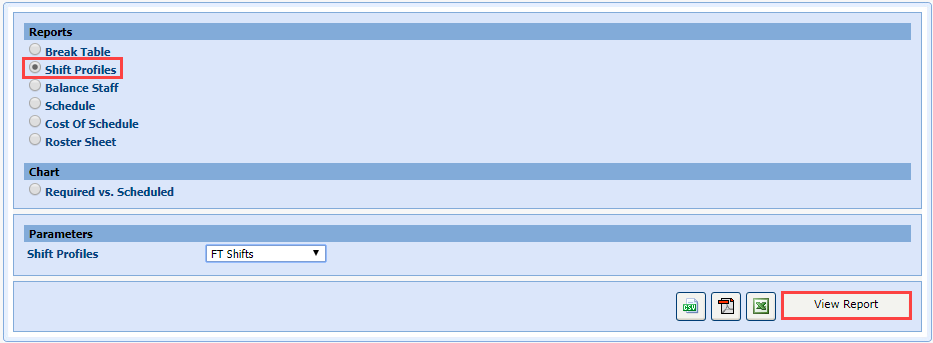
- Select View Report.
The report is displayed: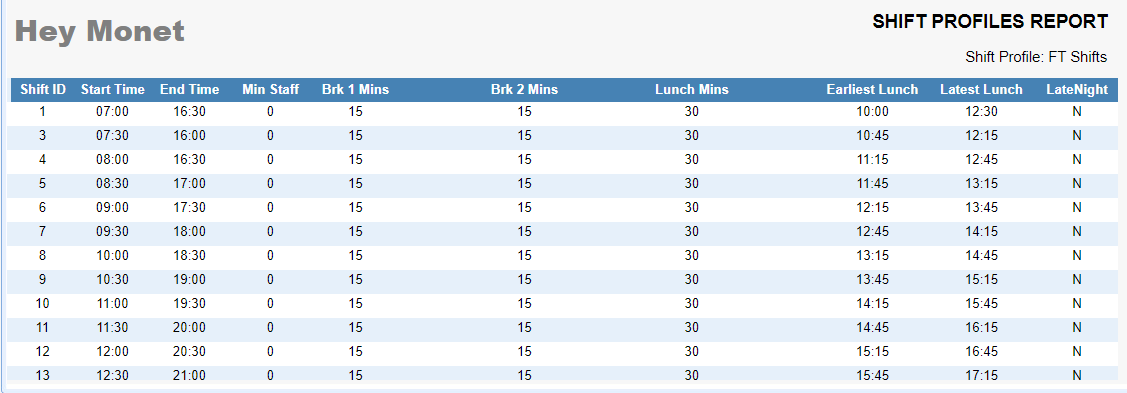
Generate a Balance Staff Report
This option allows you to generate a report that shows the staffing summary for the activated workgroup ’s schedule on a quarter-hour basis.
- Select the Balance Staff radio button.
- Select a date from the Date drop-down menu.
- Select a team from the Skill Team drop-down menu.
- Select View Report.
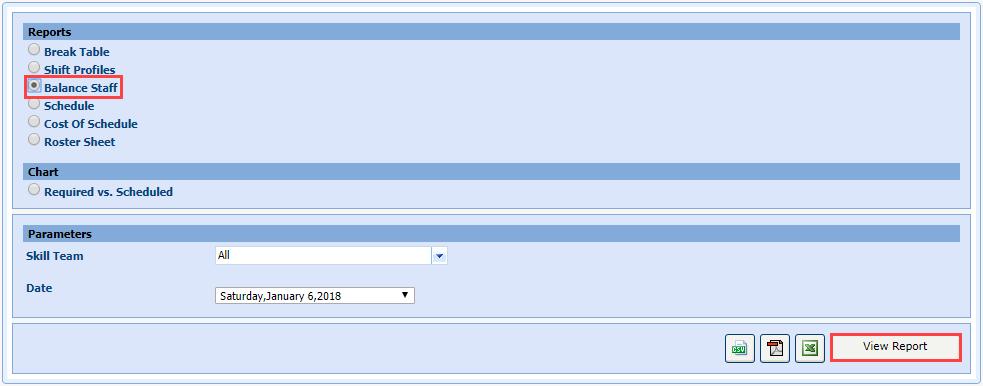
- Select View Report.
The report is displayed: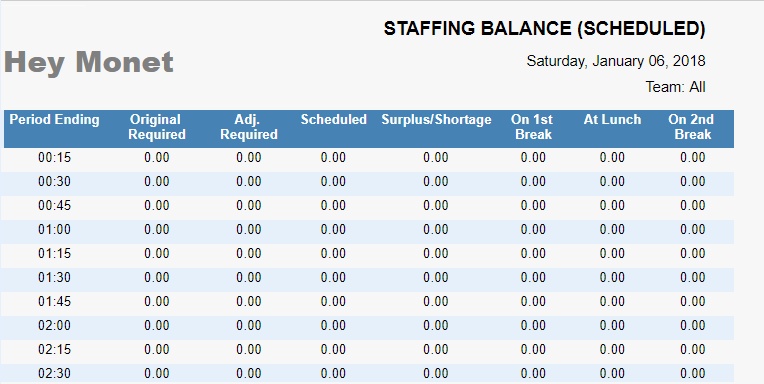
This report contains the following information:
- Period Ending: Ending period for various schedule time slots.
- Original Required: Requirement determined by the Forecast data.
- Adjusted Requirement: Requirement determined by changes in the Forecast. This is the number used for scheduling.
- Scheduled: Number of employees actually scheduled to handle calls during the specified time period. It does not include the number of employees on a lunch break or another break. After implementation of 5mins break feature, this column indicates fractional values.
- Surplus/Shortage: Additional/Deficient number of employees - the difference between the Original Required column (not the Adjusted Requirement) and the Scheduled column. This column displays decimal values after the implementation of the 5mins break feature.
-
On 1st Break: Number of employees on the first break at a point in time. After the implementation of 5mins break feature, the values in the On 1st Break and On 2nd Break columns will display fractional values.
-
At Lunch: Number of employees on lunch at a point in time.
-
On 2nd Break: Number of employees on the second break at a point in time. This column also displays fractional values after implementation of 5mins break feature.
Generate a Schedule Report
This option allows you to generate a report of schedules for a particular date and for an activated workgroup.
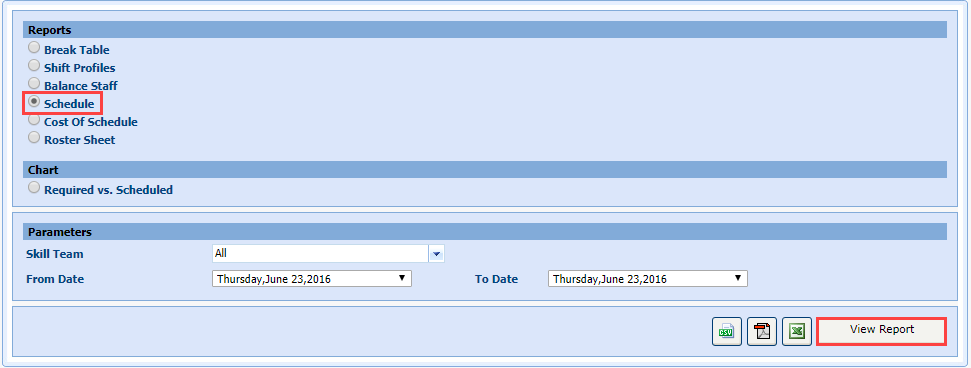
- Select the Schedule radio button.
- Select the From Date from the drop-down menu.
- Select the To Date from the drop-down menu.
- Click View Report.
The report is displayed: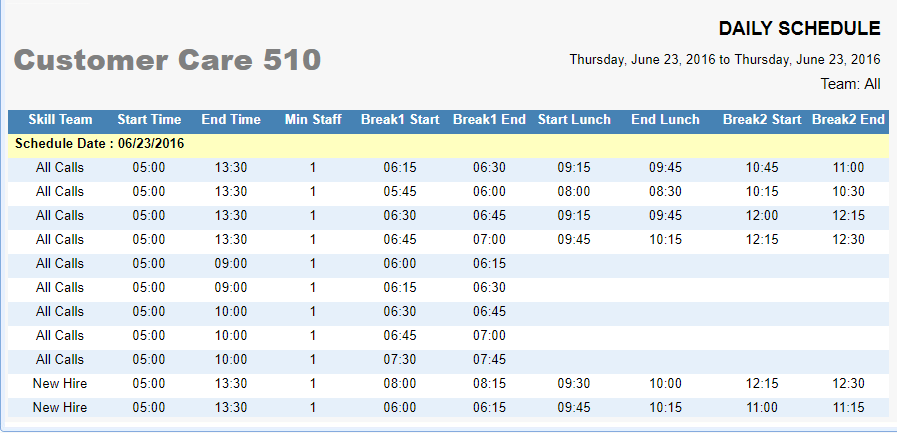
Generate a Cost of Schedule Report
This option allows you to generate a report of schedules for a particular date and for an activated workgroup along with the cost of each shift in the schedule.
- Select Cost of Schedule.
- Select the From Date from the drop-down menu.
- Select the To Date from the drop-down menu.
- Select View Report.
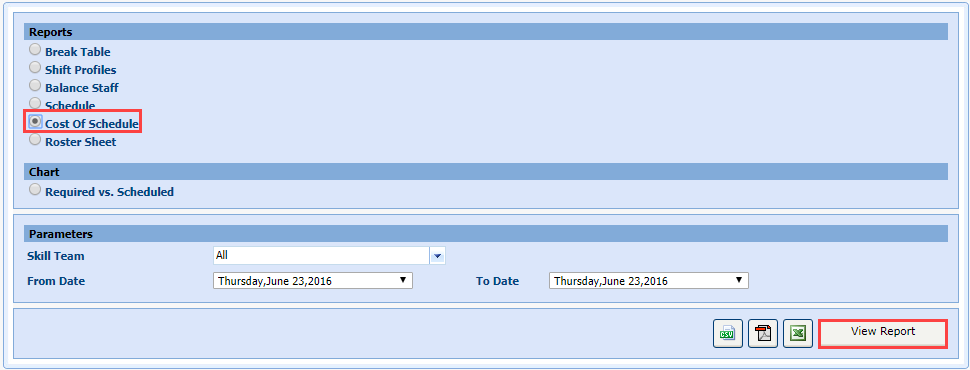
The report is displayed: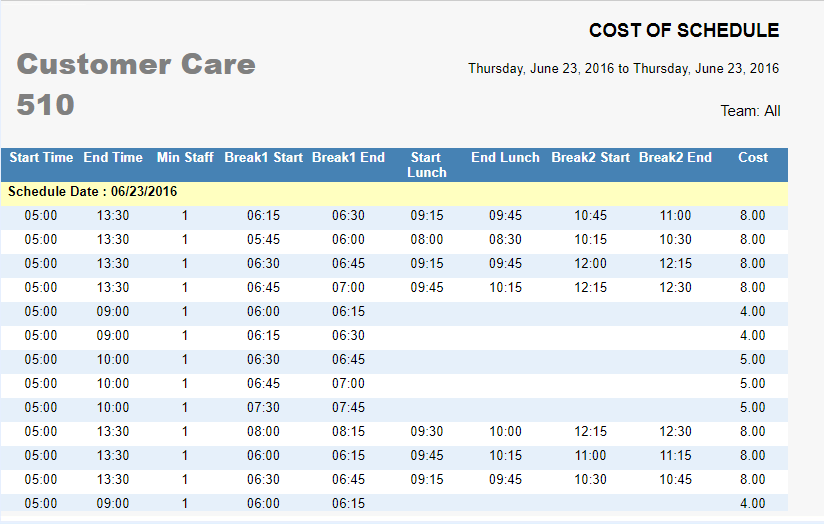
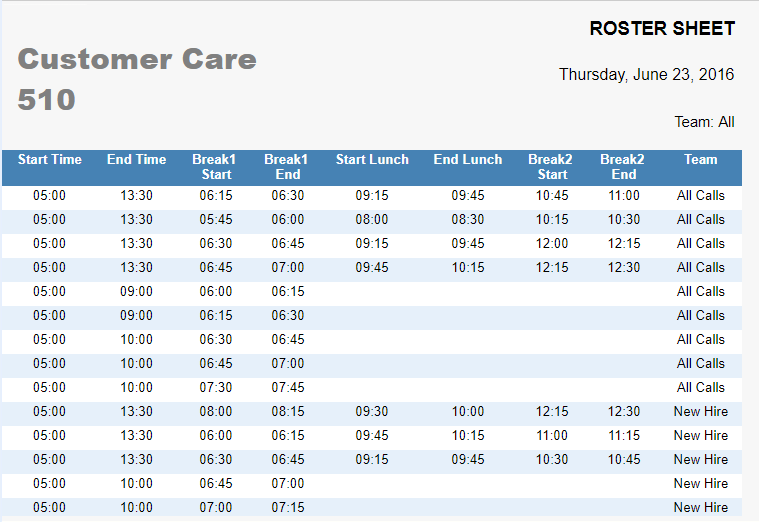
Generate a Roster Sheet Report
This option allows you to generate a report of the staffing details for the schedules for a selected date.
- Select Roster Sheet.
- Select the From Date from the drop-down menu.
- Select the To Date from the drop-down menu.
- Select View Report.

The report is displayed: